

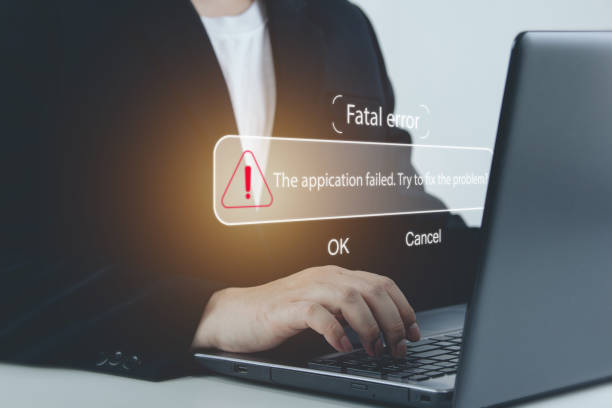
If you are a Kindle enthusiast who enjoys pushing the boundaries of your e-reader, encountering the Kual application error can feel like hitting a brick wall. KUAL (Kindle Unified Application Launcher) is the essential gateway for running custom software like KOReader, specialized library managers, or personalized screensavers. However, even with a technically successful jailbreak, that frustrating “Application Error: The selected application could not be started” popup can still appear, trapping you within the stock Amazon interface.
Understanding the logic behind a Kual application error is the first step toward reclaiming your device. This guide moves beyond basic surface-level tips to provide a deep, human-centric analysis of why these errors occur in the modern Kindle ecosystem and how you can resolve them permanently without losing your data.
What Exactly Is the Kual Application Error?
To fix the Kual application error, one must first understand what KUAL actually is. Unlike a standard app you download from the Kindle store, KUAL is a “booklet”—a clever exploit that mimics the behavior of a system document to launch third-party scripts.
When the device displays the Kual application error, it essentially means the Kindle’s security layer (the Java Virtual Machine) has performed a signature check and found that the launcher doesn’t have the proper “permission” to run. This usually happens because the jailbreak’s “bridge” has been severed, or the Kindle’s operating system has flagged the file as unauthorized after a firmware update.
Primary Triggers for the Kual Application Error
Identifying the specific cause of your Kual application error is vital to choosing the right fix. Based on current Kindle firmware behaviors in 2026, the errors usually stem from these three scenarios:
1. The Firmware Update “Wipe”
Amazon frequently pushes silent over-the-air (OTA) updates. Even a minor update can refresh the system’s security certificates. If this happens, your jailbreak files remain on the device, but the “keys” used to open them are gone. This mismatch is the leading cause of the Kual application error on recently updated devices.
2. Incorrect Booklet vs. App Versioning
There is a common misconception that one version of KUAL works for all. In reality, modern Kindles (Paperwhite 5, Oasis 3, etc.) require the “KUAL Booklet” format, while much older devices require the “KUAL App” format. Installing the wrong variant will trigger an immediate Kual application error every time you tap the icon.
3. The “MRPI” Installation Failure
Most users install KUAL via the MobileRead Package Installer (MRPI). If the installation process is interrupted—or if you forget to type the ;log mrpi command into the search bar—the launcher icon might appear in your library, but it won’t actually point to a functioning script. Attempting to open this “hollow” icon results in the Kual application error.
Comprehensive Solutions to Fix Kual Application Error
If you are currently facing a Kual application error, follow these systematic steps. They are designed to be non-destructive, meaning they won’t delete your books or settings.
Step 1: The “Hotfix” Restoration
The first and most effective solution for a Kual application error is re-applying the Jailbreak Hotfix.
-
Download the latest
Update_jailbreak_hotfix_xxx_install.binfrom a trusted community source (like MobileRead). -
Connect your Kindle to your PC and drop this file into the root folder (the main folder that opens when you click the Kindle drive).
-
Safely eject and go to Settings > Device Options > Update Your Kindle.
-
Once the device reboots, the “keys” are restored, and the Kual application error should disappear.
Step 2: Freeing Up System Cache Space
A little-known fact is that the Kindle needs a “buffer” of free space to execute third-party scripts. If your storage is 99% full, the KUAL launcher will fail to initialize.
-
Ensure you have at least 500MB of free space.
-
Delete a few large audiobooks or high-res PDFs.
-
Restart your Kindle and try opening the launcher again.
Step 3: Re-installing the KUAL Booklet via MRPI
If the hotfix doesn’t work, your KUAL installation itself might be corrupted.
-
Connect to your PC and navigate to the
mrpackagesfolder. -
Place the KUAL
.binfile inside that folder. -
Eject the Kindle and type
;log mrpiinto the Kindle’s main search bar. -
The screen will flash, and the installer will run. This “refreshes” the link and usually clears the Kual application error.
Preventing the Kual Application Error in the Future
Once you have regained access to your device, you should take proactive steps to ensure the Kual application error doesn’t return.
Blocking Amazon’s “Silent” Updates
Amazon is constantly trying to patch the exploits that allow KUAL to run. To prevent a future Kual application error, you should:
-
Keep Airplane Mode On: Only turn on Wi-Fi when you specifically need to download a book.
-
Use the “Folder Hack”: Create a folder on your Kindle’s root directory named
update.bin.tmp.partial. This prevents the Kindle from downloading update files in the background.
Maintaining the MobileRead Kindle Kit (MKK)
MKK is a set of developer keys that allows custom apps to run. Think of it as the “license” for KUAL. Periodically checking for MKK updates and keeping them installed on your device is the best insurance against the Kual application error.
Advanced Technical Considerations
For those using the newest 12th generation Kindles or the latest 2026 firmware versions, the Kual application error can sometimes be related to the “Hard-Float” vs. “Soft-Float” architecture. If you are using old extensions from five years ago, they simply won’t run on modern hardware. Always ensure your extensions (like KOReader or LibrarianSync) are the latest versions compatible with your specific processor architecture to avoid triggering a Kual application error.
Conclusion
The Kual application error is rarely a sign of a “bricked” or broken device. Instead, it is usually a simple communication breakdown between your custom software and the Kindle’s security system. By following the hotfix and MRPI re-installation steps outlined above, you can resolve the issue and get back to your customized reading environment. Remember, the key to a stable jailbroken Kindle is staying informed and keeping your security “bridge” files updated.
Frequently Asked Questions (FAQs)
1. Can a Kual application error break my Kindle permanently?
No. A Kual application error is a software-level rejection. It does not affect the hardware or the basic ability of the Kindle to read official Amazon books. It only prevents the custom launcher from opening.
2. Why does the error keep coming back after a few weeks?
This is likely because your Kindle is auto-updating in the background. When the firmware updates, it breaks the jailbreak bridge. Re-installing the hotfix and blocking OTA updates will prevent this.
3. Is there a specific version of KUAL I should use for the Paperwhite 5?
Yes, you should use the KUAL-KDK-2.0 Aztec booklet or the “Coplate” version. Older versions designed for the Kindle Keyboard or Kindle 4 will result in a Kual application error.
4. What does the command ;log mrpi actually do?
The ;log mrpi command tells the Kindle’s internal logger to execute a specific script found in the extensions folder. It is the standard way to install packages that the Kindle’s default “Update Your Kindle” button might reject.
5. I re-installed the hotfix but still see the Kual application error. What now?
If the hotfix fails, you may need to re-install the MKK (MobileRead Kindle Kit). Without the developer keys provided by MKK, the Kindle will not trust the KUAL booklet, even if the jailbreak itself is still active.

